
Are you tired of spending hours fixing your WordPress site when things go wrong? In this guide on how to use WP Reset Plugin, you’ll learn how to reset your entire website or just specific parts of it with a few simple clicks, no stress and no hassle.
That’s exactly what the WP Reset plugin offers you. Whether you’re a developer testing new themes or a site owner wanting a fresh start, WP Reset lets you quickly restore your site to its original state without complicated steps. Ready to save time and avoid headaches?
Keep reading to discover how you can use WP Reset to simplify your WordPress management and keep your site running smoothly.
Credit: kb.hosting.com
Introduction To Wp Reset Plugin
WP Reset is a powerful tool designed to restore WordPress sites quickly and safely. It helps users reset their websites with just a few clicks. This plugin saves time and effort by simplifying site recovery and maintenance tasks. Ideal for developers and site owners, it removes unwanted changes without affecting important data.
What Is Wp Reset And Its Primary Purpose
WP Reset is a WordPress plugin that resets your website to its default state. It deletes themes, plugins, and database entries safely. The main purpose is to provide a fast way to clear out unwanted content or errors. It does not remove your core WordPress files. Instead, it clears customizations and returns the site to a clean slate.
Why Quick Site Recovery Is Crucial For WordPress Users
WordPress sites face issues like plugin conflicts, failed updates, or hacks. A quick recovery tool like WP Reset helps fix these problems fast. It prevents long downtime and data loss. Fast reset means you can test new themes or plugins without risk. Developers benefit by saving time during development and troubleshooting.
Overview Of Scenarios Benefiting From Wp Reset
- Testing new plugins or themes without harming the live site
- Recovering from failed updates or site crashes
- Cleaning up a development or staging site for fresh work
- Removing unwanted settings and content after experiments
- Preparing a site for a new project or client
| Scenario: Benefit | t of WP Reset |
|---|---|
| Plugin testing | Reset site quickly after tests to avoid conflicts |
| Site crashes | Restore the site fast without reinstalling WordPress |
| Development cleanup | Clear the database and settings for new projects |
| Content removal | Remove unwanted posts and pages easily |
Credit: wordpress.org
Key Features Of Wp Reset Plugin
WP Reset offers powerful tools to manage and restore your WordPress site quickly. Its features focus on ease, safety, and control, making site recovery and cleanup straightforward. These tools help both beginners and developers maintain a clean, efficient website.
One-click Full Site Reset: Simplifying Site Recovery
This feature lets you reset your entire WordPress site with a single click. It removes all content, themes, plugins, and customizations, returning the site to a fresh state. Perfect for developers testing new setups or users fixing major issues.
- Complete site reset in seconds
- Removes posts, pages, media, and users
- Resets database tables to default
- Safe and fast recovery option
Selective Reset Options: Targeted Cleanup For Plugins And Themes
WP Reset allows selective resets to clean only specific parts of your site. You can delete all plugins or themes without affecting other data. This option saves time by avoiding a full reset when only plugins or themes cause problems.
| Option | Effect |
|---|---|
| Delete All Plugins | Removes all installed plugins but keeps content intact |
| Delete All Themes | Deletes all themes except the active one |
Database Snapshots: Safe Backup Before Reset
Before resetting, WP Reset creates database snapshots. These snapshots store the current state of your database. They act as backups, allowing you to restore your site if something goes wrong during a reset.
- Create snapshots with a single click
- Store multiple snapshots for different states
- Quickly restore previous versions anytime
- Protects against accidental data loss
Automatic Cleanup Of Transients And Orphaned Data
WP Reset automatically cleans up transients and orphaned data. Transients are temporary options that can slow down your site. Orphaned data comes from old themes or plugins. This cleanup improves site speed and performance.
- Removes expired transients
- Deletes leftover options and metadata
- Optimizes database for faster queries
- Keeps the site clean and efficient
Recovery Tools: Access To Emergency Recovery Mode
In case of severe errors, WP Reset provides an Emergency Recovery Mode. This mode helps regain access to the admin area even if the site crashes. It disables problematic plugins or themes, allowing safe troubleshooting.
- Activate Emergency Recovery Mode easily
- Bypass fatal errors blocking admin access
- Disable faulty plugins or themes
- Fix issues without manual file edits
Step-by-step Guide: How To Use Wp Reset Plugin
The WP Reset plugin simplifies resetting your WordPress site. It helps developers and site owners clear the site or fix errors without hassle. Follow this guide to install, create snapshots, reset, and restore your site safely.
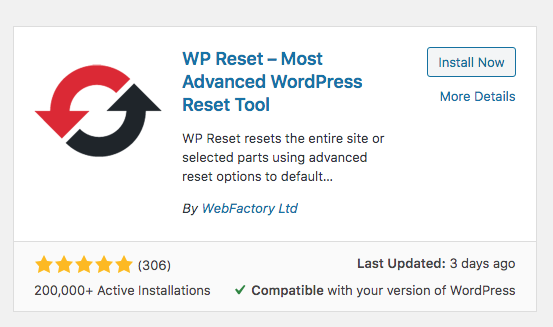
Installing And Activating Wp Reset Plugin
- Go to your WordPress dashboard.
- Navigate to Plugins > Add New.
- Type
wp resetin the search box. - Find the plugin with a black and red round logo.
- Click Install Now and then Activate.
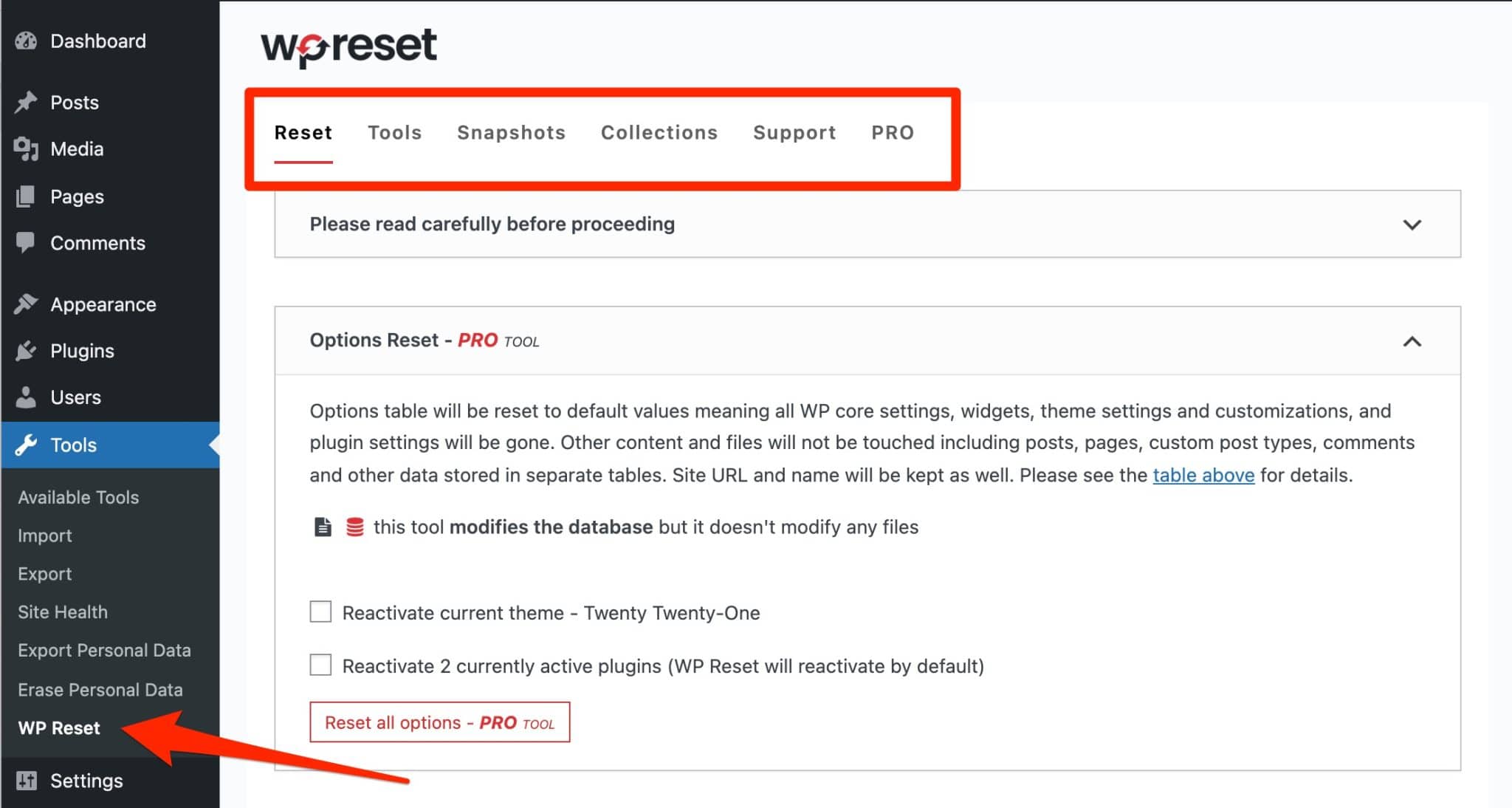
- Access WP Reset under the Tools menu.
Creating A Snapshot Before Resetting Your Site
Snapshots are like backups. They save your site’s current state. Always create one before resetting.
- Open WP Reset in the Tools menu.
- Find the Snapshots tab.
- Click Create Snapshot.
- Name your snapshot for easy reference.
- Wait for confirmation that the snapshot is saved.
This step protects your data and settings.
Performing A Full Site Reset: What To Expect
A full reset clears all content, themes, and plugins but keeps WordPress installed.
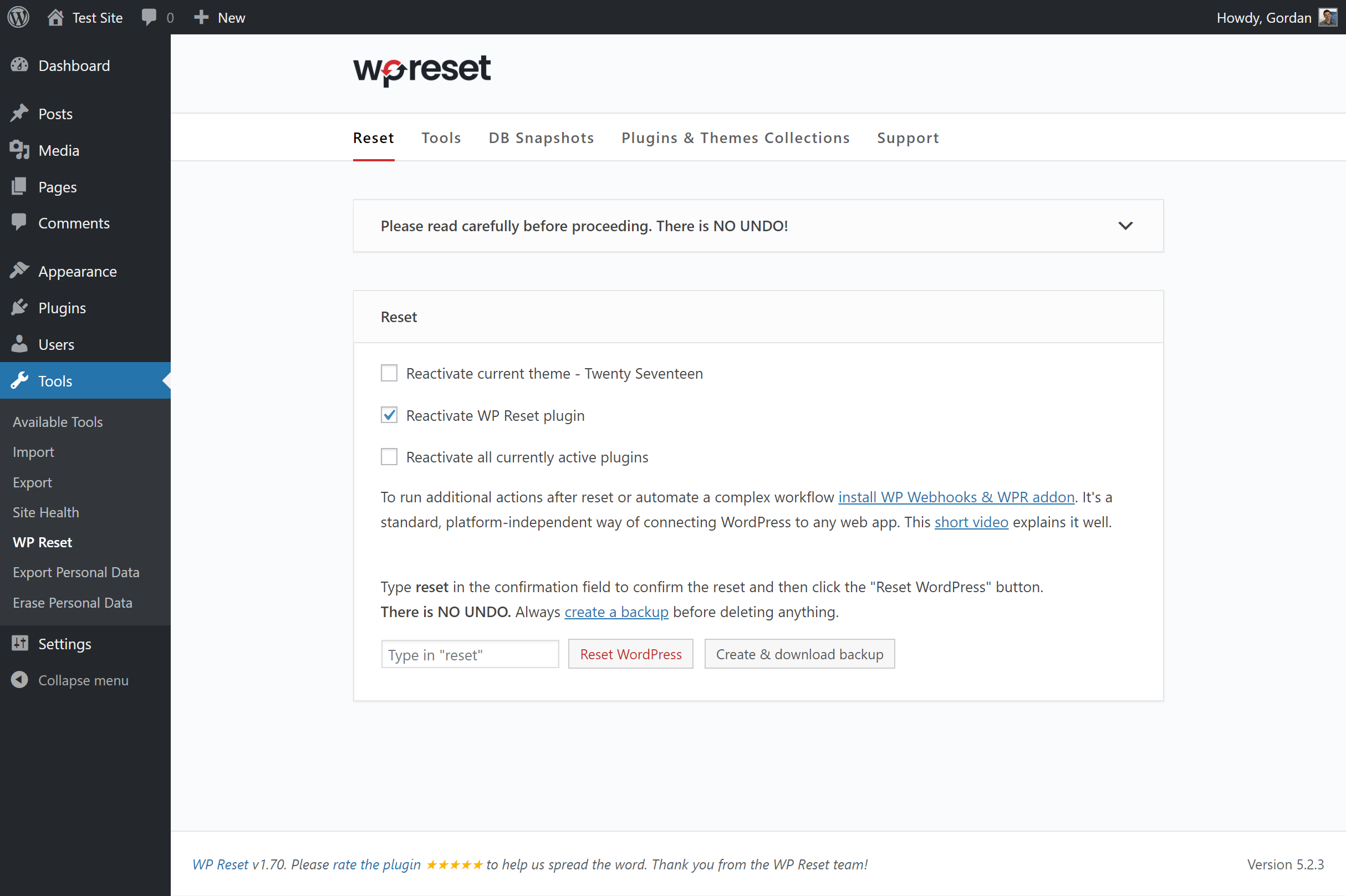
- Go to WP Reset in your dashboard.
- Scroll to the Site Reset section.
- Type
resetin the confirmation box. - Click Reset Site.
WP Reset will delete all posts, pages, and customizations.
The process is quick. After the reset, WordPress looks fresh and clean.
Using Selective Reset For Plugins And Themes
Selective reset deletes only plugins, themes, or customizations.
- In WP Reset, locate options to delete themes or plugins.
- Click Delete Plugins to remove all plugins.
- Click Delete Themes to remove all themes except the active one.
- Confirm your choice.
This option keeps your content intact while cleaning plugins or themes.
Restoring A Site From A Snapshot
Restoring brings your site back to a saved snapshot state.
- Open WP Reset and go to the Snapshots tab.
- Find the snapshot you want to restore.
- Click Restore next to the snapshot.
- Confirm the action.
WP Reset will load your site exactly as it was when the snapshot was taken.
Snapshots are essential for safe experimentation and quick recovery.
Pricing And Affordability Breakdown
Understanding the pricing of WP Reset helps you decide which plan fits your needs. This plugin offers both a free version and a premium version. Each option has different features and benefits. The goal is to balance cost with the value you get for your website development tasks.
Free Version Capabilities And Limitations
The free version of WP Reset is powerful for basic site resets. Key features include:
- Resetting the WordPress database quickly
- Deleting all themes and plugins in one click
- Creating manual snapshots of your database
Limitations of the free version:
- No automatic backup feature
- Limited access to advanced tools and support
- Must manually download backups after creating snapshots
Premium Features In Wp Reset Pro
WP Reset Pro offers extra tools for users needing more control and automation. Main premium features include:
- Automatic backups before resets
- Advanced snapshot management
- Access to professional support
- Tools for selective resets of plugins, themes, or content
- Faster restoration of your website
These features help save time and reduce risks during site management.
Comparing Cost Versus Value For Different User Needs
| Type of User | Recommended Version | Key Benefits | Approximate Cost |
|---|---|---|---|
| Beginners & Hobbyists | Free Version | Basic resets, manual backups, no cost | $0 |
| Freelancers & Small Agencies | Pro Version | Automatic backups, selective resets, support | Starts around $39/year |
| Developers & Agencies | Pro Version | Advanced snapshot control, time-saving tools | Varies by license, higher tiers available |
The free version suits users with simple needs and tight budgets. The pro version fits users managing multiple or complex sites. It offers better safety and efficiency, justifying the price for professional use.
Pros And Cons Based On Real-world Usage
The WP Reset plugin offers a quick way to reset WordPress sites. Users appreciate its speed and simplicity. Still, some limitations affect its full potential. Understanding these pros and cons helps users decide how to best use the plugin.
Advantages: Speed, Ease Of Use, And Safety Nets
WP Reset stands out for its fast performance. It resets sites within seconds, saving time.
- Speed: The plugin clears the database quickly without delays.
- Ease of Use: Installation is simple via the WordPress admin panel. The interface is clear, with reset options easy to find under the Tools menu.
- Safety Nets: Snapshots serve as manual backups. Users can create and restore snapshots to avoid data loss.
These features make WP Reset ideal for developers testing themes or plugins.
Limitations: Backup Automation And Manual Handling
The plugin’s free version lacks automatic backups. Users must create snapshots manually before resets.
| Limitation | Details |
|---|---|
| Backup Automation | No automatic backup system in the free version; manual snapshot creation required. |
| Manual Handling | Users must remember to create and download backups before reset actions. |
Failing to create backups can lead to permanent data loss.
Common User Challenges And How To Overcome Them
- Remembering to Back Up: Set a reminder to create snapshots before resetting.
- Understanding Reset Options: Read plugin descriptions carefully to choose the right reset type.
- Handling Large Sites: For big databases, create snapshots and export data regularly.
Following these steps reduces risk and improves workflow.
Ideal Users And Use Cases for WP Reset
WP Reset is designed to help various WordPress users quickly restore their sites to a clean state. It suits a range of users from developers to beginners by simplifying site management tasks. Understanding who benefits most helps us use the plugin effectively and safely.
Developers And Testers: Streamlining Development Cycles
Developers and testers use WP Reset to speed up their workflow. They can reset the site with one click, removing test data and plugins without hassle. This saves time and keeps the environment clean for new tests.
- Reset database tables while keeping files intact
- Use snapshots to save site state before testing
- Quickly delete themes and plugins to test fresh installs
This plugin is ideal for creating and testing themes, plugins, or new features safely.
Site Administrators: Managing Site Maintenance Efficiently
Site administrators benefit from WP Reset by managing site maintenance tasks easily. They can remove unwanted plugins or themes quickly without manual cleanup. The plugin helps keep WordPress sites running smoothly.
| Task | WP Reset Feature | Benefit |
|---|---|---|
| Removing plugins | Delete all plugins with one action | Save time and avoid errors |
| Clearing themes | Delete all themes except the active | Keep the site clean and organized |
| Database reset | Reset database tables quickly | Fix site issues without reinstalling |
Beginners: Safely Experimenting Without Risk
Beginners can experiment with themes, plugins, and settings without fear. WP Reset offers a safe way to undo changes by restoring the site to a fresh start. This prevents mistakes from causing lasting damage.
- Install the WP Reset plugin from the WordPress dashboard
- Create snapshots before major changes
- Reset the site if experiments go wrong
Beginners gain confidence by trying new things with a safety net.
When To Avoid Using Wp Reset
WP Reset is powerful but should be used carefully. Avoid it in these cases:
- On live sites with important data without backups
- If unsure about what will be deleted
- When automatic backups are needed (free version lacks this)
Always create manual backups or snapshots before resetting.
Conclusion And Best Practices
WP Reset is a powerful tool for quickly restoring your WordPress site to a clean state. It helps developers and site owners recover from errors, test new features, or start fresh without hassle. Using it correctly ensures you save time and avoid data loss.
Adopting best practices while using WP Reset protects your site and makes the reset process smooth. Below are essential points to remember and helpful tips to maximize the plugin’s benefits safely.
Key Takeaways On Using Wp Reset For Quick Recovery
- Fast site restoration: Reset your site in seconds with just a few clicks.
- Selective reset options: Choose to reset themes, plugins, or the entire database.
- Snapshot feature: Create snapshots before resetting to save your current site state.
- No automatic backups: Use snapshots for manual backups to avoid losing data.
- Ideal for developers: Great tool to test changes or troubleshoot errors safely.
Tips For Safe And Effective Site Resetting
- Create a snapshot: Always take a snapshot before resetting your site.
- Backup important data: Export content or database backups outside WP Reset.
- Use reset options wisely: Reset only what you need to avoid unnecessary data loss.
- Test on staging sites: Try WP Reset on a staging environment before using it live.
- Keep plugin updated: Use the latest WP Reset version for improved features and security.
- Deactivate plugins/themes: Deactivate conflicting plugins before resetting if issues arise.
Additional Resources And Support Channels
| Resource | Description | Access |
|---|---|---|
| Official WP Reset Documentation | Step-by-step guides and FAQs on using WP Reset features. | wpreset.com/docs |
| WordPress Plugin Page | Download, reviews, and basic setup instructions for WP Reset. | wordpress.org/plugins/wp-reset |
| Support Forum | Ask questions and get help from the WP Reset community and developers. | wordpress.org/support/plugin/wp-reset |
| AppSumo Deal Page | Purchase options and user reviews for WP Reset. | appsumo.com/products/wp-reset/ |
Credit: wpmarmite.com
Frequently Asked Questions
How To Use Wp Reset Plugin In WordPress?
Install and activate WP Reset from the WordPress Plugins menu. Open Tools > WP Reset. Choose reset options and confirm to reset your site quickly.
How Do I Reset A Plugin In WordPress?
To reset a WordPress plugin, deactivate and delete it from the Plugins menu. Then reinstall and activate it fresh.
Is the WP Reset Plugin Free?
Yes, the WP Reset plugin offers a free version with essential features. It allows site resets and creates snapshots.
How To Use Wp Rollback Plugin?
To use WP Rollback, go to the Plugins page in WordPress admin. Click the “Rollback” link under the desired plugin. Choose the version to roll back to and confirm. The plugin will update to the selected version immediately.
Conclusion
WP Reset plugin simplifies resetting your WordPress site quickly and safely. It helps clear themes, plugins, and content in just a few clicks. Using snapshots protects your data before making changes. This tool suits beginners and developers alike. Keep your site clean and organized with minimal effort.
Try WP Reset to manage your WordPress site with ease and confidence.
Related Articles: WP Reset Download| WP Reset Lifetime License| WP Reset Pro Nulled|