
Is your WP Reset plugin not working the way it should? You’re not alone.
Many website developers and WordPress users rely on WP Reset to quickly restore their sites to a clean slate, saving time and headaches. But when the plugin doesn’t respond or fails to reset your site, frustration kicks in—and your workflow grinds to a halt.
Don’t worry; this article is here to help you fix those annoying glitches fast. You’ll discover common reasons why WP Reset might fail, practical troubleshooting steps you can apply right now, and tips to keep your site running smoothly. Keep reading, and take control of your WordPress site reset process again with confidence!
Introduction To Wp Reset Plugin And Common Issues
The WP Reset Plugin is a popular tool designed to help users quickly restore their WordPress sites to default settings. It simplifies the process of resetting themes, plugins, and site configurations without manual hassle. Despite its usefulness, users sometimes face problems with the plugin not working as expected. Understanding the plugin’s purpose and common issues helps to maintain site stability and avoid downtime.
What Is The Wp Reset Plugin And Its Purpose
WP Reset is a WordPress plugin that allows users to reset their website to its original state with just a few clicks. It is mainly used during development or troubleshooting to remove unwanted changes quickly. The plugin can:
- Delete all customizations without removing core files
- Reset database tables while keeping media files intact
- Remove themes and plugins safely
- Clear cache and transients
This tool saves time and effort by automating tasks that would normally require manual intervention.
Common Problems When Wp Reset Plugin Fails To Work
Several issues can cause the WP Reset Plugin to malfunction, including:
- Plugin conflicts: Other installed plugins may interfere.
- Insufficient permissions: Lack of proper user rights can block actions.
- Server restrictions: Hosting environments might limit reset operations.
- Corrupted files: Damaged plugin or WordPress files affect functionality.
- Incomplete installation: Errors during plugin setup cause failures.
These issues often lead to errors or no response when executing reset commands.
Why Quick Fixes Are Essential For Site Stability
Fast troubleshooting and fixes are critical to keep WordPress sites stable. Delays or unresolved errors can cause:
- Increased downtime, affecting user experience.
- Data loss or corruption risks.
- Reduced site performance and slow load times.
- Security vulnerabilities due to outdated plugins or themes.
Applying quick fixes ensures the site remains functional and safe. It also reduces frustration for site owners and developers.
Credit: wpmarmite.com
Key Features Of Wp Reset Plugin And Their Importance
WP Reset is a powerful tool designed for website developers and administrators. It helps manage WordPress sites by clearing data quickly and safely. Its features save time and reduce errors during site maintenance. Understanding these features explains why WP Reset is vital for smooth website management.
Instant Site Reset: Benefits For Developers And Site Admins
The Instant Site Reset feature wipes the entire site with just a few clicks. It quickly restores the website to its original state without deleting files. Developers use this to test themes or plugins on a fresh site.
- Speeds up the development process
- Removes unwanted changes instantly
- Prevents manual errors during reset
- Useful for troubleshooting broken sites
Site admins benefit by easily clearing test data and starting fresh without reinstalling WordPress.
Selective Data Reset: Solving Partial Clean-up Challenges
Selective Data Reset allows cleaning only parts of the website. This feature targets specific data like posts, plugins, or themes without affecting the entire site.
| Data Type | Reset Impact | Use Case |
|---|---|---|
| Posts & Pages | Deletes all content | Clear test posts without losing settings |
| Plugins | Deactivates or deletes plugins | Fix conflicts by resetting plugins |
| Themes | Restores default theme | Test new themes safely |
This method solves issues where full reset is too risky or unnecessary.
Snapshots And Backup Integration: Ensuring Data Safety
WP Reset offers Snapshots to create backups before changes. Snapshots save the site’s database and files, allowing easy recovery.
- Create a snapshot before making changes.
- Perform resets or troubleshooting.
- Restore snapshot if something breaks.
This feature protects against data loss and ensures safe testing. Integration with backup plugins enhances site security.
Database Management Tools: Simplifying Complex Troubleshooting
WP Reset includes tools for database cleanup and repair. These tools fix common WordPress database issues without complex manual work.
- Clear transients and orphaned data
- Repair broken tables
- Optimize database performance
- Remove unused metadata
Database management helps keep the site fast and stable, reducing downtime during troubleshooting.
Troubleshooting Wp Reset Plugin Not Working
WP Reset is a popular tool to quickly reset WordPress sites. It saves time and helps developers test changes fast. Sometimes, the plugin may not work as expected. Troubleshooting these issues is essential for smooth site management. Below are key steps to identify and fix problems with WP Reset.
Checking Plugin Compatibility And WordPress Version
Ensure your WordPress version supports the WP Reset plugin. An outdated WordPress can cause plugin errors.
- Go to
Dashboard > Updatesto see your WordPress version. - Compare this with the WP Reset requirements on the plugin page.
- Update WordPress if it is outdated.
- Check if the WP Reset plugin is the latest version.
Using incompatible versions leads to unexpected failures.
Identifying And Resolving Plugin Conflicts
Other plugins may conflict with WP Reset and stop it from working.
- Deactivate all other plugins except WP Reset.
- Test if WP Reset works now.
- Reactivate plugins one by one and test WP Reset each time.
- Identify the conflicting plugin causing the issue.
- Look for updates or alternatives to the conflicting plugin.
This method isolates conflicts and helps fix them quickly.
Verifying User Permissions And Roles
WP Reset requires specific user permissions to perform site resets.
- Check if your user role is Administrator.
- Only Administrators can reset the site using WP Reset.
- Go to
Users > Your Profileto verify role. - Ask the site owner or admin to grant you proper permissions if needed.
Lack of permissions causes the plugin to not execute tasks.
Clearing Cache And Temporary Files For Plugin Functionality
Cached files can block WP Reset from working correctly.
- Clear your browser cache.
- Clear WordPress caching plugins like W3 Total Cache or WP Super Cache.
- Clear server-side cache if your host provides one.
- Flush CDN cache if you use a Content Delivery Network.
Removing cache ensures the latest plugin scripts load properly.
Using Debug Mode To Diagnose Issues
Enable WordPress debug mode to find plugin errors.
define( 'WP_DEBUG', true ); define( 'WP_DEBUG_LOG', true ); define( 'WP_DEBUG_DISPLAY', false ); Add these lines to your wp-config.php file to log errors to wp-content/debug.log.
Check the log file for WP Reset-related errors. This helps spot conflicts, permission issues, or missing files.
Turn off debug mode after troubleshooting by setting WP_DEBUG to false.
Quick Fixes To Restore Wp Reset Plugin Functionality
The WP Reset plugin may stop working due to various reasons. Simple fixes can restore its functionality fast. Try these easy methods to get your plugin running smoothly again. These steps do not need advanced skills and save time.
Reinstalling Or Updating The Wp Reset Plugin
Start by checking if your WP Reset plugin is up to date. An outdated plugin may cause errors.
- Go to your WordPress dashboard.
- Navigate to Plugins > Installed Plugins.
- Find WP Reset and click Update Now if available.
- If issues persist, deactivate and delete the plugin.
- Then, reinstall it by going to Plugins > Add New, search “WP Reset,” and click Install Now.
Reinstalling ensures corrupted files get replaced and fresh settings are applied.
Manually Resetting WordPress Without The Plugin
If WP Reset still fails, reset WordPress manually. This method wipes your site but keeps files safe.
- Backup your database and files first.
- Access your database via phpMyAdmin.
- Drop all WordPress tables to clear data.
- Delete all themes and plugins from the
wp-contentfolder using FTP. - Reinstall WordPress and add fresh plugins.
This manual reset clears conflicts blocking WP Reset plugin functionality.
Configuring Smtp Settings To Resolve Email-related Issues
WP Reset uses email functions for notifications. Email issues can cause plugin failures.
Fix email sending by setting up SMTP:
- Install an SMTP plugin like WP Mail SMTP.
- Configure it with your email provider’s SMTP details.
- Verify sending test emails from the plugin settings.
Proper SMTP setup improves email deliverability and prevents reset email failures.
Adjusting File Permissions To Enable Plugin Operations
Incorrect file permissions block plugin actions. Check these to allow WP Reset to work properly.
| File/Folder | Recommended Permission |
|---|---|
wp-content/plugins/wp-reset folder |
755 |
| Plugin files (.php, .css) | 644 |
Use FTP or hosting control panel to set these permissions. This enables plugin scripts to run without errors.
Deactivating Conflicting Plugins Temporarily
Other plugins may conflict with WP Reset. Test by disabling all plugins except WP Reset.
- Go to Plugins > Installed Plugins.
- Bulk select all plugins except WP Reset.
- Click Deactivate.
- Check if WP Reset works properly now.
- Reactivate plugins one by one to find the conflicting one.
Finding conflicts helps maintain a stable plugin environment and avoids crashes.
Pricing And Affordability Breakdown
Understanding the cost of WP Reset helps decide if it fits your budget. Pricing affects your choice for website maintenance tools. This section explores the free and premium options, cost benefits, and pricing comparisons.
Overview Of Free Vs. Premium Wp Reset Features
WP Reset offers a free version with basic site reset capabilities. It suits small projects or testing purposes. The premium version adds advanced features like:
- Automatic snapshots before resets
- Full database snapshots
- Multisite support
- Priority support
- Extended plugin and theme management
The premium plan unlocks tools that save time during site recovery or testing.
Cost Benefits Of Using Wp Reset For Website Maintenance
WP Reset reduces the time spent on manual fixes. This lowers maintenance costs over time. Key cost benefits include:
- Quick site resets prevent costly errors
- Automated snapshots secure your data
- Easy plugin and theme management saves developer hours
- Less downtime means better user experience
Overall, WP Reset offers value that surpasses its price.
Comparing Wp Reset Pricing With Alternative Solutions
| Tool | Free Version | Premium Price | Key Features |
|---|---|---|---|
| WP Reset | Basic reset functions | $39/year (approx.) | Snapshots, multisite, support |
| WP Rollback | Rollback plugins/themes | Free | Simple rollback only |
| WP Database Reset | Reset database tables | $49/year (approx.) | Database reset, snapshots |
WP Reset offers a balanced price with strong features. Alternatives may lack automation or multisite support.

Credit: wordpress.org
Pros And Cons Of Wp Reset Plugin Based On Real-world Usage
The WP Reset plugin is popular among WordPress users for quickly restoring sites to a clean state. It helps developers, testers, and site owners save time by resetting databases and clearing settings. Real-world use shows both strong benefits and some drawbacks. Understanding these helps users decide if WP Reset fits their needs.
Advantages: Speed, Ease Of Use, And Safety Nets
- Speed: WP Reset performs site resets in seconds, much faster than manual resets.
- Ease of Use: The user interface is simple with clear options, suitable for beginners and experts.
- Safety Nets: Features like
Snapshotslet users back up their site before resetting. - Selective Reset: Users can reset database tables without affecting files or uploads.
- Tools Integration: The plugin integrates with WordPress admin tools, making access easy.
Limitations: Potential Conflicts And Learning Curve
WP Reset can cause issues in some environments. Conflicts with other plugins or themes may occur.
- Some users report errors or incomplete resets when other complex plugins are active.
- Advanced features require understanding. Beginners might find the full range of options confusing.
- Resetting the wrong part of a site can lead to data loss without proper backups.
User Feedback And Common Complaints
| Feedback | Details |
|---|---|
| Positive | Fast reset process saves time during development and testing. |
| Negative | Some users experience “plugin not working” errors after updates. |
| Mixed | Learning to use snapshots and selective reset options requires practice. |
| Support | Support team is responsive but troubleshooting conflicts can be slow. |
WP Reset remains a useful tool. Users should test it carefully and keep backups.
Recommendations For Ideal Users And Use Cases
WP Reset Plugin offers powerful tools to quickly reset and manage WordPress sites. It suits specific users and tasks best. Understanding who benefits most helps avoid issues and maximize its value. Below are clear guidelines on ideal users, best use scenarios, and when to avoid this plugin.
Who Should Use Wp Reset Plugin For Site Management
- Developers and testers who need to reset sites often during development.
- Site admins managing multiple client sites requiring quick cleanups.
- Educators running workshops or classes on WordPress setup and testing.
- Users wanting to clear configurations or content without reinstalling WordPress.
This plugin fits those needing fast resets without manual database edits. It saves time by automating cleaning tasks.
Best Scenarios For Employing Wp Reset Features
- Testing themes or plugins: Reset sites before each test to avoid conflicts.
- Site recovery: Revert a site to default after mistakes or failed updates.
- Preparing demo sites: Quickly reset demo content for new presentations.
- Learning environments: Allow students to start fresh repeatedly.
WP Reset works well when frequent resets or bulk cleanup are needed. It handles these tasks with minimal effort.
When To Avoid Using Wp Reset And Consider Alternatives
Avoid WP Reset if:
- You need to keep specific customizations or content intact.
- You are unfamiliar with WordPress tools or risk deleting important data.
- You want to reset only parts of the site, like posts or plugins selectively.
- Your site has complex backups or staging environments better suited for rollback.
Alternatives include manual resets, backup-restore plugins, or staging site solutions. These offer more control or safety for sensitive sites.
Credit: sucuri.net
Conclusion: Restoring Your Site With Wp Reset Plugin
The WP Reset plugin offers a fast way to restore your WordPress site to a clean state. It is essential for fixing issues and starting fresh without losing time. Knowing how to address common problems ensures smooth resets and protects your data.
Understanding quick fixes and best practices helps avoid plugin failures. Keeping your site healthy and the plugin reliable is key for long-term success.
Summary Of Quick Fixes And Best Practices
- Backup your site before resetting to prevent data loss.
- Use the plugin from the
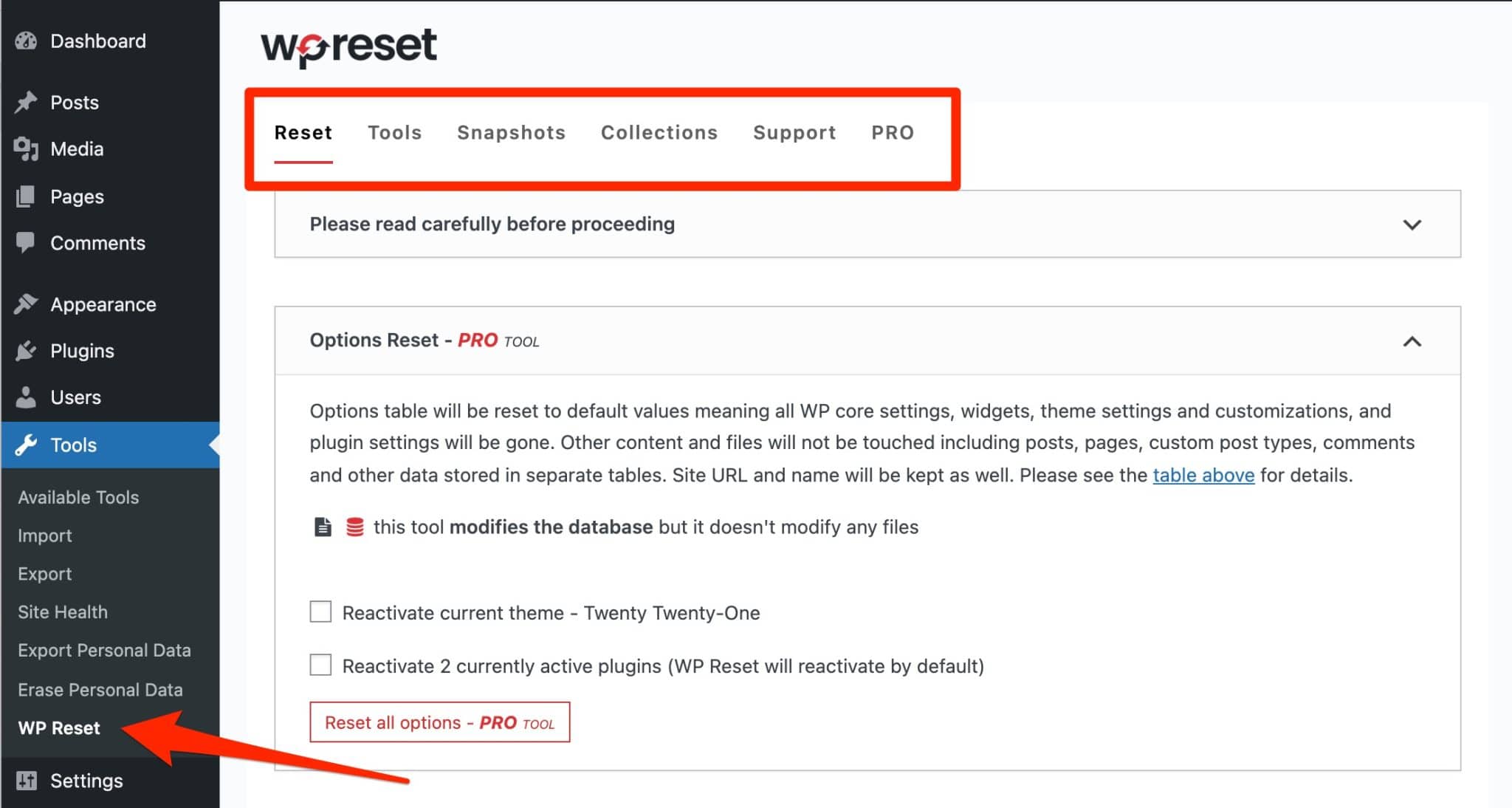
Tools > WP Resetmenu for proper access. - Clear your browser cache and deactivate conflicting plugins first.
- Check for plugin updates to fix bugs or compatibility issues.
- Ensure correct user permissions to avoid reset failures.
- Follow step-by-step reset instructions to minimize mistakes.
Ensuring Long-term Plugin Reliability And Site Health
Maintain the WP Reset plugin by:
- Regularly updating WordPress core and all plugins.
- Running backups before major changes or resets.
- Monitoring site performance and fixing errors promptly.
- Using compatible themes and plugins to prevent conflicts.
- Testing resets on a staging site before applying on live sites.
These steps protect your site and extend the plugin’s effectiveness.
Additional Resources And Support Options
Access these resources to solve issues quickly:
| Resource | Description | Link |
|---|---|---|
| Official WP Reset Documentation | Detailed guides and FAQs on plugin features and usage. | wpreset.com/docs |
| WordPress Support Forums | Community help for troubleshooting and advice. | wordpress.org/support/plugin/wp-reset/ |
| Plugin Developer Support | Direct support from WP Reset developers for complex issues. | wpreset.com/contact |
Use these to get help and keep your site running well.
Frequently Asked Questions
How Do I Reset A Plugin In WordPress?
To reset a WordPress plugin, deactivate it first. Then delete the plugin and reinstall it from the Plugins menu. Alternatively, use the WP Reset plugin for quick resets.
How To Use Wp Reset Plugin In WordPress?
Install and activate WP Reset from the Plugins menu. Open Tools > WP Reset. Choose the reset option and confirm to reset your WordPress site quickly.
Why Is WordPress Not Sending Password Reset Emails?
WordPress often fails to send password reset emails due to poor email deliverability. Use an SMTP plugin and configure SPF, DKIM, and DMARC records. Verify the admin email, check spam folders, and test for plugin conflicts to fix this issue quickly.
Is The Wp Reset Plugin Free?
The WP Reset plugin offers a free version with basic features. Premium plans unlock advanced tools and priority support.
Conclusion
WP Reset plugin issues can disrupt your workflow. Start by checking plugin compatibility and updates. Clear your site cache and disable conflicting plugins. Ensure you follow the correct installation steps. Troubleshooting helps restore smooth functioning quickly. Remember to back up your site before any reset.
Using WP Reset carefully keeps your WordPress site healthy. Visit the official WP Reset page for detailed guides. Stay patient; most problems have simple fixes. Your site can run perfectly with a little care.